Monday, November 17, 2025

7 Accessibility tools I Find the Most Helpful

 There are many different accessibility tools for all sorts of situations, below are the 7 tool that I find are the most useful in classroom and everyday scenarios.

1. JAWS- jaws is a screenreading tool, this tool can convert any text on a website directly into speech or braile for those with sight issues.

2. Read and Write- This is a text to speech tool used for those with speech problems. 

3. Seeing AI- a tool for the visualy impaired that uses AI to help the blind see the world.

4. Pear Deck- a tool for younger students who have a hard time staying focused, it gamifies and offers other ways to engage students

5. AssistiveTouch- for those with struggling motor skills it makes touching and using IOS devices easier with a floating dock

6. ZoomText- an easy to use software that zooms in for those with sight deficiency and can also read aloud.

7. Dragon Dictation- a voice recognition software that allows you to navigate different tools such as documents and emails. 

7 Accessibility tools that I feel make the digital world more inclusive

 Accessibility tools aren't  just nice to have, it's essential. Over 1 billion people worldwide have a disability of some kind and the technologies made to help them frequently wind up making them more usable for everyone. These seven accessibility tools can change the way you create, browse, and engage online, whether you're a developer, content provider, or someone who desires a more inclusive digital experience


1. Screen Readers (NVDA & VoiceOver)

Screen readers translate on screen content into speech or braille. There are two popular options 

  • NVDA (NonVisual Desktop Access) is a free, open-source screen reader for Windows.

  • VoiceOver which is built into macOS and iOS, with deep system integration and gesture-based controls.

Screen readers enable people with visual disabilities to navigate websites, applications, and documents. For content creators, testing with one helps ensure your digital products truly work for all users.

2. Color Contrast Analyzers

Insufficient contrast is one of the most common accessibility issues. Tools like WebAIM Contrast Checker and TPGi Colour Contrast Analyser can help 

  • WebAIM Contrast Checker  offers an online contrast checker that will present the contrast difference between two colors, and will help you identify a color that meets the desired level of contrast. 

  • TPGi Colour Contrast Analyser  is a free desktop application designed to help ensure digital content is accessible by checking the contrast ratio between foreground and background.

Good contrast reduces eye strain, helps people with low vision, and improves readability on small screens or in bright environments.

3. Voice Control Tools (Dragon & Built-In OS Options)

Voice control tools let users navigate devices hands-free. Popular options include:

  • Dragon NaturallySpeaking is a speech recognition software designed to allow users to control their computer and create text by speaking into a microphone.

  • Windows Voice Access / macOS Voice Control  is a hands-free feature in Windows 11 that allows users to control their PC and author text using only their voice, without requiring an internet connection.

They support people with motor disabilities, chronic pain, or temporary injuries. They also boost productivity for anyone who prefers speaking to typing.

4. Captioning and Speech-to-Text Tools

Captions aren’t only for people with hearing impairments—they help in noisy environments, quiet workplaces, and with comprehension. Some top tools:

  • YouTube Auto-Captions use speech recognition technology powered by machine learning to automatically generate captions for videos after upload.

  • Otter.ai uses speech to text transcription applications using artificial intelligence and machine learning. 

  • Rev.com specializes in providing transcription, closed captioning, subtitles, and translation services.

More than 80% of people who use captions aren’t deaf—they just appreciate clarity.

5. Keyboard Accessibility Checkers

Many users navigate without a mouse. Tools such as:

  • WAVE Accessibility Evaluation Tool is a free web accessibility evaluation tool that identifies ways to make a webpage more accessible to people with disabilities.

  • Axe DevTools is a free browser extension available for Chrome, Edge, and Firefox, which scans web pages using the axe-core rules engine to detect common accessibility problems like poor color contrast, missing alternative text, and improper heading structure.

Keyboard access is fundamental for users with motor disabilities—and it makes sites faster to navigate for power users, too.

6. Dyslexia Support Tools

People with dyslexia benefit from tools designed to reduce visual stress and enhance readability:

  • OpenDyslexic Font  is a free typeface and font designed to mitigate some of the common reading errors caused by dyslexia.

  • BeeLine Reader is a software system that adds color gradients to digital text to improve reading ability and focus.

These solutions improve reading comprehension and reduce fatigue—not just for people with dyslexia, but for anyone tackling dense or lengthy text.

7. Browser Extensions for Inclusive Browsing

Accessibility doesn’t only live inside apps. Browser extensions offer quick, powerful support:

  • Dark Reader is an open-source, free browser extension designed to reduce eye strain by applying a dark theme to websites across the internet.

  • Loom Zoom  is a video messaging platform designed for asynchronous communication, allowing users to record their screen, camera, and microphone simultaneously to create shareable video messages.

These tools allow users to personalize their browsing experience, helpful for visual impairments, ADHD, migraines, or just everyday comfort.

Final thoughts
Accessibility tools make technology more equitable, usable and enjoyable for everyone. Whether you use screen readers for testing, improve your design with contrast analyzers, or embrace captioning tools for video content, each step allows for a more inclusive digital world.


7 Accessibility Tools That Make Learning More Inclusive

Today, accessibility tools are a large part of the way students learn, and after spending weeks researching them, I’ve come to the conclusion that accessibility tools have tremendous power. One such tool — text-to-speech — reads the words on a screen out loud. This is a great aid for students with low vision, dyslexia, or who prefer to learn by listening. Another tool that’s just as important is speech-to-text, in which you talk and the device types for you. That gives students who have problems with mobility, with spelling, processing, or writing — anything else — a way to express their thoughts without getting stuck on spelling or typing speed. Closed captions are also a way of promoting accessibility (especially for those who are deaf or hard of hearing), but they’re great if, and when, you can follow educational videos at your own pace or in noisy places—you know it works.

Many devices also provide powerful visual features like zoom and magnification, used to expand text, images, or any part of the screen to a bigger size. Students who struggle with reading small print or with using visual aids are able to zoom in without the support of any special software. It is also easy on users who are comfortable in high-contrast mode and can easily read the screen, thanks to a color change to minimize eye strain and make text more prominent on the screen. It can be beneficial for students suffering from issues with visual processing, low vision, or simply tired eyes during lengthy periods of study. Screen readers that read menu items, buttons, and images on the screen are crucial for either blind or severely vision-impaired students. They enable users to go through apps, homework, and websites using sound and not sight. Finally, color filters are used to help students with color blindness view differences between colors that may appear similar. It may seem trivial, but it helps the charts, graphs, maps, and classroom illustrations to be far more understandable.

When you see those tools all together, accessibility isn’t just about accommodating disabilities but about giving every student the chance to learn in the way that works best for them. These features create classrooms where all types of learners can feel confident, supported, and included. And the best part is that most of these tools are already built into the phones, tablets, and computers we use every day. By understanding them and using them when needed, we help make education a place where everyone has a fair opportunity to succeed. 

Accessibility Tools That Really Make a Difference for Students

    In today's world, many students face Barries due to reading difficulties, language, physical impairments, and etc. However, there are numerous tools that exist to help make learning more effective and effortless. 


    The first tool is immersive reader. This is a built-in Microsoft tool that supports students who struggle with decoding text or staying focus. 

    The second tool is Speech-to-text. This tool is for students that have difficulty typing, due to motor challenges, fatigue, or dysgraphia. This allows students to speak into a microphone and it will convert it into a text.

    The third tool that Microsoft had came up with is Live captions. This tool allows people that are deaf or hard-of-hearing students to be able to understand what a video is saying. 

    The fourth tool is Read&Write is a tool that helps with reading, writing, and comprehension. A key feature is Word prediction, suggesting words as students type or making spelling easier. 

    The fifth tool is Zoom text is a tool that helps students that have bad vision so they have the ability to zoom in on words. 

    The sixth tool is spellex is a medical spell check tool for thousands of medical procedures, diseases, surgical terms, treatments, diagnostic tests, and pharmaceuticals.

    The seventh tool is Glean is a note-taking software designed to help students capture, organize, and review information more effectively.

Sunday, November 16, 2025

The Accessibility Features Every Student Should Know About

 This week I was checking out different accessibility tools and honestly I didn’t know there were so many things built into our phones and laptops that could make school easier. I always thought accessibility stuff was only for people with big disabilities, but after looking into it, I realized a lot of students around us could use these tools and we don’t even notice.


One tool that I think is really helpful is Live Captions. My roommate watches videos with captions all the time, even though he doesn’t have hearing problems. He just understands things better when he can read and listen together. I feel like students who get distracted easily would benefit from this too. Sometimes in class videos, people talk too fast and captions help you not miss anything.


Another tool is Voice Typing. I didn’t even know Google Docs had this until recently. If a student has trouble writing or they type slow, they can just speak their thoughts. I tried it once when I was tired from work and didn’t want to write a discussion post, and it actually helped me get ideas out way faster. So I can see it helping students who have motor skill issues or ADHD.


For vision stuff, Microsoft Magnifier is simple but useful. My cousin uses something similar on her phone because she hates tiny text. I think students who sit in the back and forget their glasses would use this too, not even joking. Also, tools like VoiceOver on Apple devices can read the whole screen out loud, which is a lifesaver for students with low vision or even people who just want to listen while multitasking.


A tool I thought was underrated is Immersive Reader. It breaks down words, spaces things out, and reads everything to you. I tried it while reading a long article, and it made the text look less overwhelming. I feel like students who get stressed when they see big paragraphs would really benefit from it.


Another thing I found interesting was color filters/high contrast mode. I didn’t realize color-blind students struggle with basic stuff like charts and graphs, so being able to adjust colors makes a big difference. I turned on high contrast for fun, and it actually made reading at night easier for me too.


Lastly, tools like Read&Write give extra support with vocabulary and reading. It reminds me of when I used to Google definitions in high school, except now it’s all in one place and way faster. Students who struggle with English or have trouble understanding big words would definitely use this.


After exploring everything, I realized accessibility tools aren’t just for a small group of students. They help everyone in different ways. And honestly, teachers should introduce these tools more because half of us don’t even know they exist unless someone shows us.


Accessibility tools in classrooms


    This week I took some time to explore different accessibility tools, and it really showed me how much technology can improve a student’s learning experience and how many tools are out there to support every need. Many students face challenges that can make schoolwork harder, but the right tools can remove those barriers and help them participate more fully. These tools are not just add-ons they are important supports that help students learn in ways that fit their needs in every classroom.

    One tool that stood out to me personally was Notability. I already use Notability for my own note-taking, but I never realized how helpful it can be for other learners. The ability to write, type, record audio, and mark up PDFs all in one place makes it a strong tool for students who need structure or multiple ways to process information. Another tool I learned about was Dragon NaturallySpeaking, which allows students to speak their ideas instead of typing them. This is especially helpful for students who struggle with writing because they can focus more on their thoughts rather than the mechanics of typing. I also discovered FM Systems, which send a teacher’s voice directly into a student’s hearing aids, reducing background noise and helping students with hearing impairments clearly follow along.    

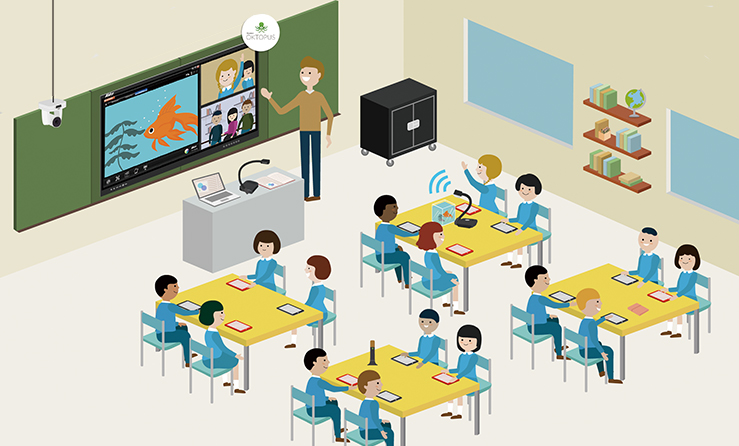
    I also found a few tools that support students with vision needs. The Silver Magnifier enlarges anything on an Android screen, making digital content easier to see. On Apple devices, VoiceOver reads everything on the screen aloud so students can navigate and complete assignments even if they cannot see the text clearly. Both tools make accessing visual information much more manageable, and can be used in more than just a classroom, showing students these tools may help them outside of the classroom as well.    Other tools focus on helping students better understand written information or build basic skills. Read&Write provides text-to-speech and vocabulary support, which can make reading more accessible for students who struggle with comprehension. EdClub uses games to make typing and spelling practice more engaging and less stressful. Together, these tools show how technology can create a more inclusive and supportive learning environment for all students.7 EdTech Tools Every Smart Classroom Needs - AVer Experts | AVer Global

Accessibility tools

  In today’s education landscape, accessibility tools play a powerful role in helping all students learn in ways that fit their needs. Tools like text-to-speech software, such as Natural reader or Microsoft Immersive Reader, give students with dyslexia, visual impairments, or reading challenges the ability to listen to text instead of struggling through print. Meanwhile, speech-to-text tools like Google Voice Typing and Dragon Naturally speaking empower students who have difficulty with writing or motor skills to express ideas fluently and keep up with assignments.


Another helpful category is screen readers, such as NVDA or VoiceOver, which convert on-screen text and navigation elements into audio for students with low vision or blindness. For learners who struggle with focus, distraction-free writing apps help remove unnecessary elements from the screen so they can concentrate on learning tasks. Additionally, closed captioning and video transcription tools support students who are deaf or hard of hearing by ensuring that audio content is accessible and easier to follow.


  Finally, color contrast and screen adjustment tools support students with visual sensitivities by allowing customization of brightness, fonts, and display contrast. Graphic organizers and mind-mapping apps like Inspiration or MindMeister also help students process information visually and structure their thoughts more effectively. By integrating these seven accessibility tools into classrooms and online learning spaces, educators can make learning more inclusive and ensure that every student can succeed in their own way.

- ChatGPT 

7 Essential Accessibility Tools Every Student Should Know

Accessibility tools aren’t designed just for students diagnosed with disabilities; they are for anyone who wants to improve their learning c...